 Domain SearchSecure your perfect UAE domain in seconds.
 Domain TransferSeamless domain transfer. Zero downtime, complete control.
 All TLDsSecure your ideal domain. Explore local UAE and international extensions.
 WHOIS LOOKUPCheck domain ownership, expiry dates, and registrar details instantly.
 AE DomainRegister a .AE domain and build trust in the UAE.
 SSL CertificatesProtect your site with trusted SSL Certificates to secure data and build customer confidence.
 .com DomainGet the world’s most trusted domain and build credibility from day one.
 Web hostingFind budget-friendly hosting that doesn’t compromise on performance.
 Windows HostingHigh-performance hosting for Windows applications and websites.
 Affiliate ProgramBecome a partner and earn commission for every referral.
 WordPress HostingBlazing-Fast WordPress Hosting, Optimised for Performance.
 Email HostingSecure your communications with professional email hosting. Use your domain, stay in control.
 Reseller HostingLaunch your own hosting brand. We handle the tech, you grow your business.
 cPanel HostingHosting supported by cPanel (simple and user-friendly)
 VPS HostingVirtual servers that grow with you. Full root access. Blazing fast performance.
 Managed VPS HostingNot a tech expert? Let us handle everything with our fully managed VPS hosting.
 Dedicated ServersEnjoy full access and total control over your dedicated physical server.
 AI Website BuilderBuild beautiful websites instantly with AI.
 Online ShopCreate a professional online store. No coding needed.
 Web Design ServicesGet a custom website built for your brand and your goals.
 BlogDiscover resources on web hosting, e-commerce, digital marketing, and beyond.
 Contact UsWe are available 24/7 via chat or email
 SupportExplore guides and answers for all our services
Switching domain registrars sounds complicated, but it really isn’t. Transferring your domain to Truehost takes just a few steps and usually wraps up within 5 to 7 days.
If you’ve been looking for better pricing, faster support, or a simpler dashboard, Truehost is worth the move.
In this guide, we’ll walk you through exactly how to transfer your domain to Truehost in 2026, with zero downtime and no domain privacy loss.
What You Need Before Starting the Transfer
Before you can initiate the domain transfer, you need to be aware of several rules that will affect the overall smoothness of the transfer.
Ironing these out will ensure the transfer goes through without major hiccups.
Check Your Domain Eligibility First
Not every domain is ready for transfer at any given time. ICANN has set a few rules that determine when a domain name can be transferred to a new registrar.
The domain must be at least 60 days old since registration or its last transfer.
Recent changes to your WHOIS contact details can also temporarily block a transfer.
Additionally, expired domains cannot be transferred until they are renewed with the current registrar.
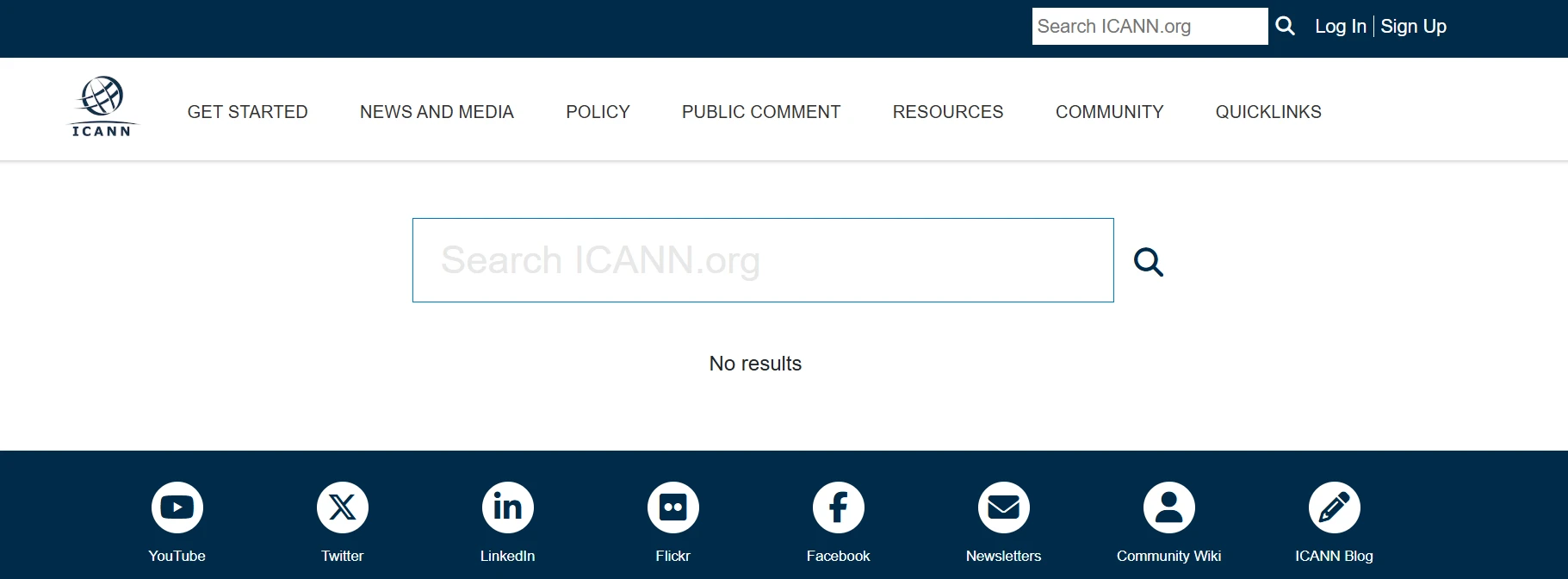
Before going further, run a quick WHOIS lookup at icann.org/lookup or who.is.
This check shows your current registrar name, expiry date, and lock status. If everything checks out, you are ready to proceed.
Disable WHOIS Privacy Protection
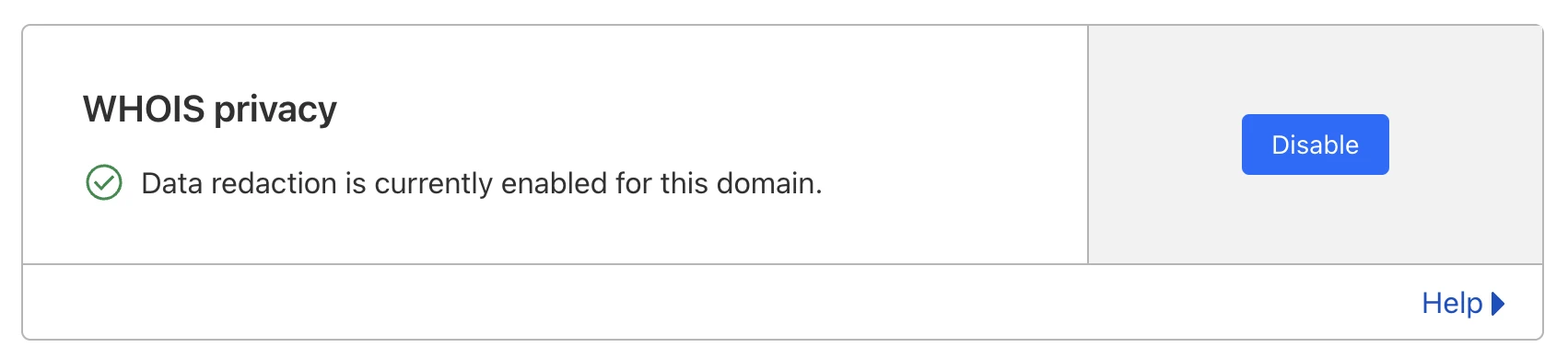
Many registrars offer WHOIS privacy to hide your personal contact details from public records.
However, this feature can block the transfer confirmation email from reaching you.
Truehost needs to reach your real registrant email address to confirm the transfer.
So turn off WHOIS privacy or ID protection at your current registrar before starting.
On Namecheap, go to Domain List > Manage > WhoisGuard to disable it.
On GoDaddy, head to Domain Settings and look for the Privacy toggle.
Skipping this step is one of the most common reasons domain transfers stall halfway through.
Step 1: Unlock Your Domain at the Current Registrar
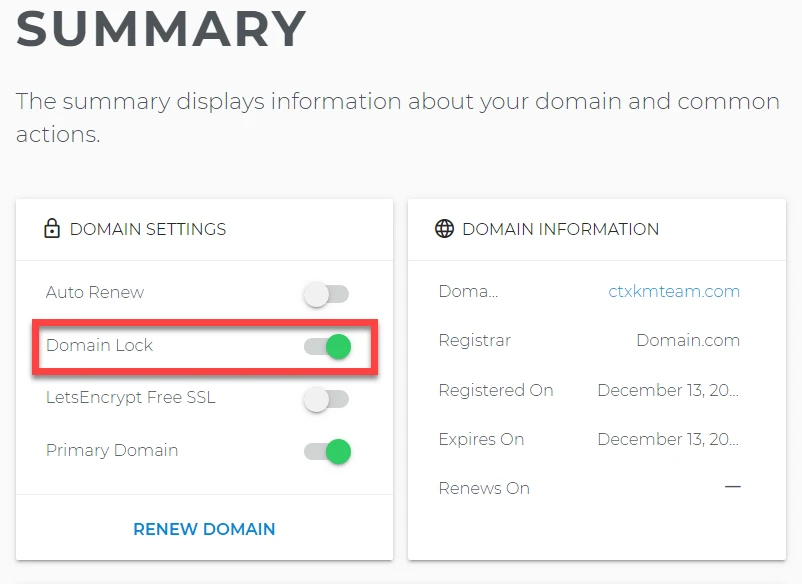
A domain lock is a protective status that registrars apply automatically after registration or transfer.
It prevents anyone, including you, from moving the domain unless you disable it first.
This protection follows ICANN policy and keeps your domain safe from unauthorized transfers.
However, you need to remove it temporarily before the transfer to Truehost can begin.
Unlocking does not delete your domain or expose it to any risk.
It simply signals to the global registry that the domain is eligible for a legitimate, authorized transfer.
Once the transfer is complete, you can re-lock it inside the Truehost client area.
How to Unlock Your Domain (By Registrar)
The unlocking process is quick at most registrars. Follow the steps below based on where your domain currently lives.
- Namecheap: Log in, go to Domain List, click Manage, then toggle off “Domain Lock.”
- GoDaddy: Go to My Domains, click Manage, then scroll to find the Domain Lock toggle.
- Hostinger: Open hPanel, go to Domains, select your domain, then find the Domain Lock toggle and turn it off.
After unlocking, verify the change by checking the domain in a WHOIS tool.
The status should now show “OK” or “Active.” That confirmation means the domain is ready for Step 2.
Step 2: Get Your EPP / Authorization Code
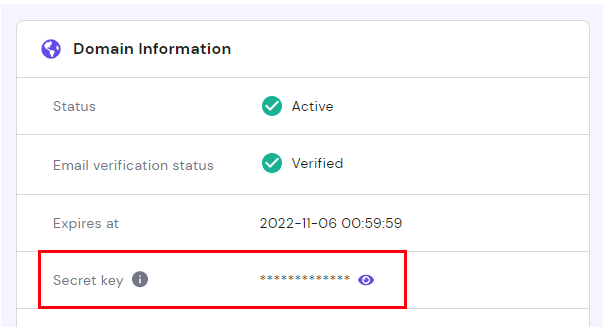
The EPP code is also called an Auth-Code, Authorization Code, or Transfer Code.
It is a 6- to 16-character string issued by your current registrar. Think of it as a PIN that proves you are the rightful owner and authorizes the move.
Without this code, no transfer can proceed, regardless of who requests it.
A locked domain will not generate an EPP code, so always complete Step 1 first.
Once you have the code, act fast. Some codes expire within 24 to 72 hours for security reasons, so head to Truehost’s transfer page as soon as you receive it.
Where to Find the EPP Code (By Registrar)
Each registrar provides the EPP code in a slightly different location. Here is where to find it based on your current provider.
- Namecheap: Domain List > Manage > Auth Code, then click “Send via email.”
- GoDaddy: Domains > Manage > Domain Settings > “Get authorization code.”
- Hostinger: Open hPanel, go to Domains, find your domain, and look for the “Secret Key” field. Click the eye icon to reveal the code.
If the code is not visible in the dashboard, the domain registry may restrict its direct display.
In that case, contact the registrar’s live chat support and ask them to send the code to your registered email.
Once received, keep it confidential and move straight to the next step.
Step 3: Initiate the Transfer on Truehost

Head to Truehost and navigate to the Domains section. Click “Transfer Domain,” then type your full domain name, for example, mybusiness.com.
Enter the EPP code from your previous registrar in the field provided.
After entering the details, add the transfer to your cart and proceed to checkout.
Step 4: Approve the Transfer Request
After placing the order, watch your inbox for an email from your old registrar.
This email contains an approval link and acts as a final security check. Open it, click the link, and select “Approve” or “Accept” to confirm the move.
If you ignore this email, the transfer may be delayed by several days.
Always check your spam or junk folder, as these emails are often mistakenly filtered.
What Happens During the Waiting Period
While the transfer is pending, your domain remains fully active and accessible.
Your website continues to load normally, and emails keep working without interruption.
However, you cannot modify domain details, DNS records, or renew the domain during this window.
That restriction lifts automatically once the transfer completes.
Step 5: Verify DNS Settings After Transfer
Once the transfer completes, log in to your Truehost client area and go to Domains > Manage.
Look at the nameservers currently listed for your domain. If the domain was previously pointing to a third-party host such as Cloudflare, update the nameservers to match your new hosting setup.
Truehost displays its default nameservers in the dashboard for easy reference.
Re-enable Security Settings
After the transfer wraps up, take a few minutes to tighten your domain security again.
Re-enable the domain lock inside the Truehost client area. This protective layer prevents unauthorized future transfers.
If you use WHOIS privacy, turn it back on through Truehost’s privacy protection add-on.
Also, check the status of your SSL certificate. Some certificates are tied to the old registrar and may need to be reissued after the transfer.
Truehost offers free SSL certificates through its hosting plans, which makes this step fast and cost-free.
How Long Does the Domain Transfer Take?
Transfer timelines vary by domain extension. On average, it takes 5 to 7 days to transfer .ae, .com, and .net domain extensions.
While waiting, your Truehost dashboard shows the transfer status as “Pending Transfer.” Delays beyond 7 days for .com domains usually stem from three causes.
The first is an unapproved confirmation email sitting in your inbox or in your spam folder.
The second is an active domain lock that was not fully disabled. The third is an EPP code mismatch or an expired code.
Troubleshooting Common Domain Transfer Problems
1) Wrong or Expired EPP Code
The “Wrong EPP Code” error is the most common issue people encounter during a transfer.
If this appears, return to your old registrar immediately and request a new authorization code.
Some registrars issue codes that expire within 24 hours, so time matters here.
When pasting the code into Truehost’s transfer form, remove any extra spaces before or after the string.
If the registrar’s dashboard lacks a code regeneration option, contact their live chat support directly.
Ask them to email you a new code, then return to Truehost and retry the transfer.
Most registrar support teams can generate a new code within a few minutes.
2) Transfer Request Declined by Old Registrar
Under ICANN rules, a registrar may decline a transfer only for a valid reason.
Accepted reasons include an unpaid invoice, a registrant contact change made within the past 60 days, or a domain age of less than 60 days.
If your registrar declines the transfer without a valid reason, you can file a complaint through ICANN’s Transfer Dispute Resolution Policy, known as TDRP.
Truehost’s support team can walk you through the escalation process step by step. Reach them via WhatsApp or live chat for the fastest response.
Most legitimate issues get resolved within 24 to 48 hours once the right steps are taken.
3) Domain Still Locked After Unlocking
Occasionally, a domain appears unlocked in the dashboard but still fails to transfer.
One cause is active DNSSEC on the domain. DNSSEC must be disabled before the domain lock can be fully cleared for transfer.
Another cause is a secondary lock that some registrars apply on top of the standard ICANN lock.
In that case, contact the registrar’s support team and ask them to manually remove the additional lock.
Also, confirm that at least 60 days have passed since the domain’s initial registration or its last transfer.
If the 60-day window has not passed, you will need to wait before a new transfer can go through.
How to Transfer Multiple Domains
Managing dozens of domains across multiple registrars is a genuine headache for agencies.
Truehost supports bulk domain transfers, making consolidation far more manageable for resellers and digital agencies.
Instead of processing each domain individually, contact Truehost’s support team directly.
They will coordinate the bulk transfer on your behalf and keep you updated throughout the process.
Consolidating all domains under a single Truehost account simplifies billing, renewal dates, and DNS management.
Agencies also benefit from the unified client dashboard, which displays all domains, email accounts, hosting plans, and SSL certificates in one place.
For resellers, this kind of central control saves hours of administrative work every single month.
Conclusion
Transferring your domain to Truehost is a straightforward process that puts you in control of better pricing and reliable support.
With your authorization code ready and your domain unlocked, the entire process can be completed in minutes and fully resolved within 7 days.
If you’ve been putting this off, today is the right time to make the move. Start your transfer to Truehost now and see the difference for yourself.