 Domain SearchSecure your perfect UAE domain in seconds.
 Domain TransferSeamless domain transfer. Zero downtime, complete control.
 All TLDsSecure your ideal domain. Explore local UAE and international extensions.
 WHOIS LOOKUPCheck domain ownership, expiry dates, and registrar details instantly.
 AE DomainRegister a .AE domain and build trust in the UAE.
 SSL CertificatesProtect your site with trusted SSL Certificates to secure data and build customer confidence.
 .com DomainGet the world’s most trusted domain and build credibility from day one.
 Web hostingFind budget-friendly hosting that doesn’t compromise on performance.
 Windows HostingHigh-performance hosting for Windows applications and websites.
 Affiliate ProgramBecome a partner and earn commission for every referral.
 WordPress HostingBlazing-Fast WordPress Hosting, Optimised for Performance.
 Email HostingSecure your communications with professional email hosting. Use your domain, stay in control.
 Reseller HostingLaunch your own hosting brand. We handle the tech, you grow your business.
 cPanel HostingHosting supported by cPanel (simple and user-friendly)
 VPS HostingVirtual servers that grow with you. Full root access. Blazing fast performance.
 Managed VPS HostingNot a tech expert? Let us handle everything with our fully managed VPS hosting.
 Dedicated ServersEnjoy full access and total control over your dedicated physical server.
 AI Website BuilderBuild beautiful websites instantly with AI.
 Online ShopCreate a professional online store. No coding needed.
 Web Design ServicesGet a custom website built for your brand and your goals.
 BlogDiscover resources on web hosting, e-commerce, digital marketing, and beyond.
 Contact UsWe are available 24/7 via chat or email
 SupportExplore guides and answers for all our services
Checking login status shows up in nearly every WordPress project at some point.
Maybe you want to hide a price table, greet users by name, or lock off a page entirely.
You search for an answer and find a one-liner with is_user_logged_in(). You paste it into your theme, and nothing happens.
Or it throws an error because WordPress has not loaded the user session yet. Now you have a broken site and no idea why.
This guide covers every reliable method for checking the login status in WordPress.
How WordPress Tracks Login State Under the Hood
WordPress uses browser cookies to track user sessions.
When someone logs in, WordPress sets a cookie named wordpress_logged_in_{hash} in their browser.
That cookie holds session data that WordPress reads on each page load.
The is_user_logged_in() function reads the user session from the WordPress global $current_user object. It does not read the cookie directly at call time.
If you call this function too early in the WordPress load order, it returns false. That happens even when the user is genuinely logged in.
| Method | Best For | Security Level | Requires PHP? |
|---|---|---|---|
is_user_logged_in() | Theme templates, plugin logic | High | Yes |
CSS.logged-in body class | Visual-only UI changes | None | No |
wp_ajax_ hooks | Front-end dynamic checks | High (with nonce) | Yes |
REST API permission_callback | Headless or API-driven sites | High | Yes |
| Plugin (WP Activity Log) | Admin monitoring, no-code gating | Medium | No |
current_user_can() | Role-specific content or actions | Very High | Yes |
Method 1: Use is_user_logged_in() in PHP.
is_user_logged_in() is a WordPress core function built into every WordPress install.
It returns a boolean: true if the current visitor has an active, authenticated session. It returns false if the visitor has no active session.
The function takes no parameters, which keeps the syntax clean and readable.
Internally, it wraps a call to wp_get_current_user() and checks if the returned user ID is greater than zero.
Where to Put This Code in Your WordPress Site
You can place this function in three main locations.
The first is directly inside a template file, such as single.php or page.php.
The second is inside a shortcode callback function registered in functions.php.
The third is inside a custom plugin file.
One thing to watch out for is the timing of your placement. Placing this code inside a hook that fires too early, like plugins_loaded, causes problems.
The user object has not been populated at that point, so the function always returns false.
The init hook is the earliest safe place to call is_user_logged_in().
add_action( 'init', function() {

    if ( is_user_logged_in() ) {

        // Safe to run your logic here

    }

});
Method 2: Check Login Status Using CSS Body Classes
WordPress automatically adds a logged-in CSS class to the tag for authenticated users.
No code is required on your end for this to happen. You can target this class in your stylesheet to show or hide elements.
/* Hide the sign-up banner for logged-in users */

body.logged-in .signup-banner {

    display: none !important;

}

/* Show a member-only nav item for logged-in users only */

body:not(.logged-in) .members-nav-link {

    display: none;

}
This approach works well for small cosmetic changes.
There is, however, a significant limitation you should be aware of before using it. CSS only controls what is visible in the browser.
The HTML is still sent to the browser regardless of what CSS hides. Anyone can open the browser developer tools and instantly see hidden content.
When to Use CSS vs. PHP for Login Checks
| Scenario | Correct Method |
|---|---|
| Hiding a “Sign Up” button | CSS |
| Protecting a members-only article | PHP |
| Showing a welcome banner | CSS |
| Restricting access to a download link | PHP |
The decision comes down to what you are actually protecting.
Use PHP when you need to gate actual content or server-side actions.
Use CSS only for cosmetic differences that do not expose sensitive data.
A reliable pattern is to use both together. Let PHP handle the logic gate, and let CSS handle the visual polish.
That combination gives you WordPress security at the server level and a clean UI on the front end.
Method 3: Check Login Status via WordPress AJAX
WordPress provides two separate AJAX hook prefixes for authenticated and unauthenticated users.
The wp_ajax_{action} hook fires only when a logged-in user sends an AJAX request.
The wp_ajax_nopriv_{action} hook fires only for visitors who are not logged in.
Many developers register both hooks and then use is_user_logged_in() inside the callback for an extra layer of safety.
You should also verify a nonce with every AJAX request, without exception.
A login check without a nonce check leaves your site open to CSRF attacks.
Method 4: Check Login Status in the WordPress REST API
The REST API works with is_user_logged_in() when requests come from within the WordPress environment.
Cookie authentication handles this automatically for requests made from your own site’s front end.
The cleanest way to protect a custom REST endpoint is the permission_callback parameter.
add_action( 'rest_api_init', function() {

    register_rest_route( 'myplugin/v1', '/private-data', array(

        'methods'             => 'GET',

        'callback'            => 'my_get_private_data',

        'permission_callback' => function() {

            return is_user_logged_in();

        },

    ));

});

function my_get_private_data() {

    return rest_ensure_response( array( 'data' => 'This is private content.' ) );

}
If a non-logged-in user hits this endpoint, WordPress automatically returns a 401 Unauthorized response.
For external REST API calls from headless setups, cookie authentication alone is not enough. In those cases, Application Passwords or a proper OAuth setup is required.
Method 5: Check Login Status With a Plugin
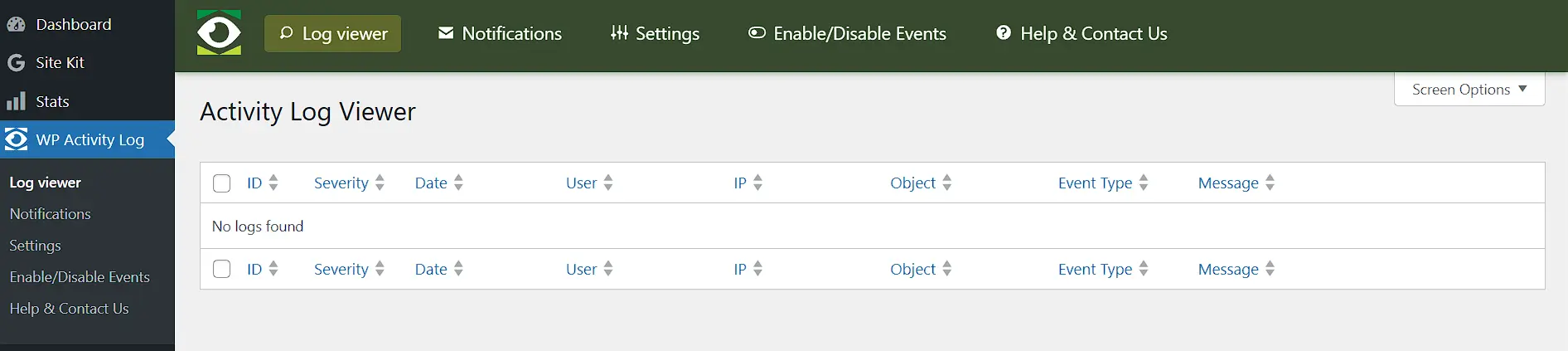
Not every WordPress user is a developer. Site owners and content managers need ways to show or hide content based on login status, too.
Plugins like WP Activity Log handle the monitoring side of login status. They tell you who is currently active on the site, rather than just whether one visitor is logged in.
For conditional content display in the block editor, plugins give you a no-code path forward.
Block visibility plugins let you restrict any Gutenberg block to logged-in users without writing PHP.
That said, plugins work best for visibility control. For actual access control where security counts, PHP-level checks are the right path.
Common Mistakes That Break Login Checks in WordPress
Even after implementing the methods above, you may notice that the login checks are not working on WordPress. Here are the common reasons why they break:
1) Calling is_user_logged_in() Too Early
This is the most common silent bug beginners hit with this function.
WordPress builds the user session during the init hook. Calling is_user_logged_in() before init fires always returns false.
That means it returns false even for users who are genuinely logged in.
Here is what that looks like when it goes wrong:
// WRONG: Placed directly in functions.php, outside any hook

if ( is_user_logged_in() ) {

    // This always returns false. The user object is not ready yet.

}
And here is the fix:
// CORRECT: Placed inside the init hook

add_action( 'init', function() {

    if ( is_user_logged_in() ) {

        // Now this works as expected

    }

});
The fix is straightforward once you know what causes the problem.
Always tie your login check to a hook that fires after WordPress has loaded the user object.
2) Confusing Cookie-Based Checks with Proper Authentication
Some tutorials show a manual check for the WordPress_logged_in cookie using PHP’s $_COOKIE superglobal.
This approach is not secure and should never be used for access control. Cookies are stored in the browser and can be inspected or spoofed by anyone.
// NEVER use this for security decisions

foreach ( $_COOKIE as $key => $val ) {

    if ( preg_match( '/wordpress_logged_in/i', $key ) ) {

        // Do not gate real content here. This is not reliable.

    }

}
The only acceptable use for this pattern is non-critical UI tweaks. Pre-populating a welcome banner before PHP renders is one acceptable example.
For anything that actually matters, use is_user_logged_in() instead.
3) Forgetting Nonce Verification in AJAX and REST Handlers
Checking is_user_logged_in() alone inside an AJAX handler is not enough.
Cross-site request forgery attacks can trigger authenticated requests from malicious external pages.
The correct pattern always verifies the nonce before checking the login status.
function my_secure_ajax_handler() {

    // Step 1: Verify the nonce first

    check_ajax_referer( 'my_action_nonce', 'nonce' );

    // Step 2: Check login status

    if ( ! is_user_logged_in() ) {

        wp_send_json_error( array( 'message' => 'Not authenticated.' ) );

    }

    // Step 3: Run the action

    wp_send_json_success( array( 'message' => 'Action complete.' ) );

}
WordPress nonces expire after 12 hours by default. For long-running front-end sessions, you can refresh the nonce using the WordPress Heartbeat API.
That prevents valid users from hitting unexpected authentication failures mid-session.
Frequently Asked Questions
Does is_user_logged_in() work with WooCommerce customers?
Yes. WooCommerce customers who log in through the My Account page are standard WordPress users.
So is_user_logged_in() correctly identifies them as authenticated.
For WooCommerce-specific logic, pair this with WooCommerce conditionals. For example, woocommerce_is_account_page() is a reliable companion when building account-related template logic.
The login check itself works the same way regardless of how the user registered.
Can I check login status in a WordPress page template without a plugin?
Yes. Any theme template file can use is_user_logged_in() directly. By the time WordPress renders a template file, the user session is already loaded and available.
How do I automatically redirect logged-out users to the login page?
The auth_redirect() function handles this in a single line. Place it at the top of your template file, before any HTML output.
Get Started With WordPress Today
You now have every method you need to check the login status in WordPress.
From a simple is_user_logged_in() call in a template file to a locked-down REST API endpoint, the right tool depends on what you are actually building.
One thing all of these methods have in common is that they depend on your server correctly handling PHP sessions and cookies.
A slow or misconfigured server can cause the login state to behave inconsistently, even when your code is perfectly written.
Truehost WordPress Hosting gives you a server environment tuned specifically for WordPress.