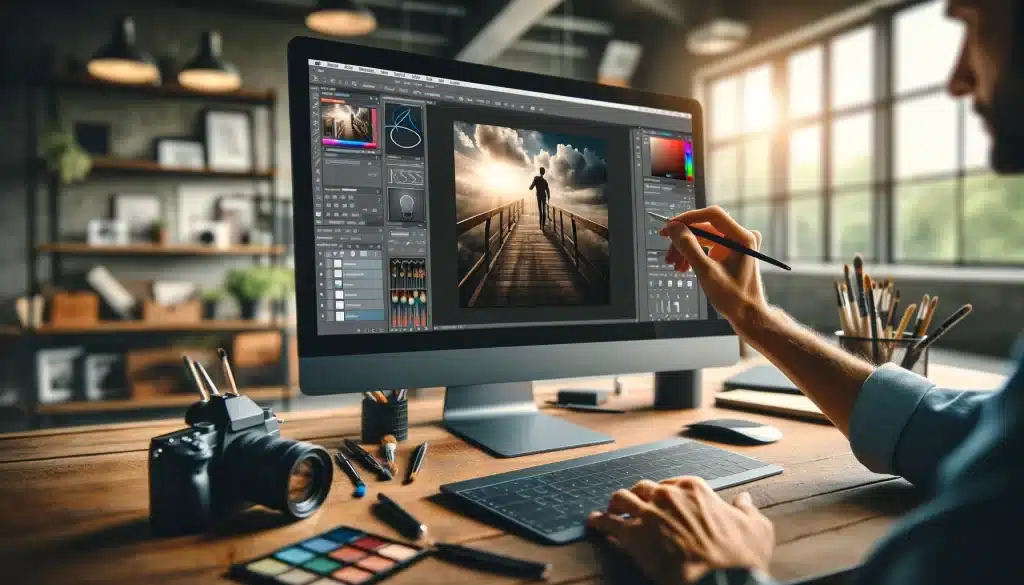
Visual Content as the Foundation of Successful Online Projects
Online projects today are far more than just text and basic functionality. They are a full visual and emotional experience that users engage with from the very first second on the site. Whether it’s a news portal, an article hub, a services directory, or an informational platform, visual content plays a crucial role in capturing and retaining the user’s attention.
In this section, we’ll explore why visuals matter, what purposes they serve, and how to use them effectively in modern websites.
The Role of Graphics in Perception
Today’s internet user is highly visual. Studies show that over 70% of people absorb visual information more quickly than text. This means an image, infographic, photo, or even a color scheme can have more impact than a paragraph of written content.
When someone lands on a website, they form an impression in the first 3–5 seconds. During that time, they notice the colors, layout, visual hierarchy, and design elements. All of that is part of the visual experience — and it's often the deciding factor in whether they stay or leave.
How visuals influence perception:
- They build trust. High-quality visuals make a website appear more professional and credible.
- They guide navigation. Icons, color accents, and design blocks make it easier for users to find what they need.
- They evoke emotion. Images can create empathy, excitement, curiosity — and these emotions increase user engagement.
For example, publishing a news article with a powerful photo from the scene instantly makes the content more relatable and impactful.
How Images Influence User Behavior
User behavior — how people interact with a site — is one of the most critical aspects of online performance. Metrics like time on page, bounce rate, and page depth all help define the quality of user experience, and they’re strongly influenced by visual content.
Compare two versions of the same article: one with plain text, and another with photos, infographics, and clean formatting. Most users will spend more time on the version with engaging visuals.
Visuals impact these specific metrics:
- Time on page: Users stay longer when they’re visually engaged.
- Bounce rate: A visually appealing site lowers the chance that visitors will leave immediately.
- Page depth: Well-designed visuals encourage users to explore more content.
These behavioral signals not only improve user experience but also help boost search engine rankings over time.
Why Visuals Matter for News and Articles
It’s easy to think that text is the most important part of an article — and it is, but only if the reader decides to stay and read it. Without the right visual support, even great writing can be overlooked or abandoned.
Visual elements that support content:
- Cover images: Eye-catching thumbnails help articles stand out in news feeds or featured sections.
- Inline photos: Relevant images inside the article bring the story to life.
- Highlighted quotes and pull-outs: Designed callouts help readers skim key points.
- Infographics: When data is involved, graphics often communicate better than words.
Properly designed articles are easier to consume, share, and return to. This is especially important for platforms that publish a high volume of content and rely on user engagement.
Infographics and Visual Accents in Service Pages
If your website offers services — from consulting to digital products — visuals help communicate value clearly and effectively. Visitors should be able to understand what you offer, how it works, and why it matters — all within seconds of landing on your page.
Visual tools that enhance service pages:
- Custom icons: Represent features or service categories.
- Comparison tables: Help visualize differences in packages or plans.
- Team photos and branded illustrations: Humanize the brand and build trust.
- Screenshots or diagrams: Showcase workflows, platforms, or deliverables.
For more technical services, strong visuals simplify complexity and make the offering easier to understand for potential clients or partners.
Aesthetic as Part of the User Experience
Today’s users have high expectations when it comes to aesthetics. They’ve seen thousands of websites and interfaces. To stand out, your site has to be not just functional — but visually pleasant, lightweight, and consistent.
Design creates perception: Even on informational platforms, the way content is presented defines how the brand is perceived. A site that "feels good" to use is more likely to be remembered, recommended, and revisited.
Elements of effective aesthetics:
- Well-balanced color palette
- Readable fonts and consistent typography
- Subtle animations and microinteractions
- Clean text-to-image ratio
- Brand-consistent layout, buttons, icons
Users may not consciously articulate why they enjoy your website, but their behavior will reflect it. Aesthetic design enhances usability, professionalism, and emotional response — all essential for long-term success.
Adobe Photoshop as a Universal Tool
Adobe Photoshop is one of the most widely used and versatile graphics editors in the world. Whether you're a designer, content manager, marketer, or simply someone working with online content, Photoshop offers the tools you need to elevate the quality of your visuals across articles, services, news sections, and project showcases.
A Brief History and Evolution
Photoshop was first introduced in 1988, and since then it has evolved into a powerful suite of tools capable of handling everything from photo editing and digital painting to UI/UX design and animation. It has become a standard in creative industries and remains the go-to solution for professionals working with visual content for websites and digital platforms.
Over time, Adobe has adapted Photoshop for various uses — including web design, social media content, print graphics, and motion graphics — all of which are directly relevant for site owners, bloggers, and digital service providers.
Core Functions of the Editor
Photoshop offers a vast array of features, but for website-related content, some of the most valuable include:
- Layer-based editing: Makes it easy to structure complex visuals and isolate elements.
- Smart objects: Allow for non-destructive editing and reusability across projects.
- Selection and masking tools: Help isolate objects for clean cutouts and compositions.
- Retouching tools: Such as Clone Stamp, Healing Brush, and Content-Aware Fill.
- Typography control: Precise tools for styling headlines, subheadings, and body text in designs.
These functions allow you to create custom graphics that match your website's style, tone, and purpose — whether you're working on banners, illustrations, or post thumbnails.
Working with Templates and Layouts
One of the strengths of Photoshop is its support for templates and reusable layouts. Designers and content creators often build:
- Social media post templates
- Website banners and sliders
- Article headers and cover images
- Project showcases or service previews
Using templates ensures consistency across different parts of your site and makes production more efficient. For teams managing multiple articles or projects each week, this can save hours of design time and reduce the risk of layout errors.
Optimizing Images for the Web
Web performance is a critical factor for user experience and SEO. Images that are too large or uncompressed can significantly slow down a website. Photoshop provides built-in tools to optimize visuals for online use:
- Export for Web: Allows you to adjust file format, resolution, and compression settings.
- Responsive resizing: Helps create multiple versions of the same image for mobile, tablet, and desktop layouts.
- File format control: Choose between PNG, JPG, SVG, or WebP depending on transparency and compression needs.
By optimizing images properly in Photoshop, you can maintain high visual quality without compromising loading speed — a critical factor in keeping users engaged.
Creating Visual Assets for Website Sections
Photoshop is incredibly useful across multiple sections of a site. Here’s how it supports content creation for each type:
- News: Custom headlines, feature images, breaking news badges, date overlays.
- Articles: Infographics, visual quotes, supporting graphics, statistics blocks.
- Services: Icons, service previews, diagrams explaining the process or packages.
- Projects: Portfolio cards, case study visuals, before/after comparisons.
Each of these components helps elevate the credibility and professionalism of your content — making it more shareable, readable, and engaging.
Photoshop in Editorial Workflows
Many editorial teams use Photoshop as a core part of their content production workflow. From preparing images for article covers to adapting graphics for different screen sizes, the software provides flexibility and precision.
Typical steps in such workflows include:
- Receiving raw images or assets
- Editing and resizing images in Photoshop
- Applying brand filters, overlays, or effects
- Exporting images optimized for the web
- Embedding them into CMS platforms like WordPress or custom site builders
Photoshop also integrates smoothly with Adobe Creative Cloud, making it easy to collaborate with designers and developers working on other parts of the project — such as layout, animation, or interface design.
Examples of Real-World Use
To give you a better picture of how Photoshop adds value to online projects, here are a few real-world scenarios:
- A blog editor uses Photoshop to create consistent featured images with text overlays and branding for every article.
- A marketing team designs landing page banners for multiple seasonal campaigns, each with tailored visuals and typography.
- A digital agency develops a visual style guide and Photoshop templates to maintain design consistency across client projects.
- An online magazine uses Photoshop to produce detailed infographics summarizing complex news stories.
In all these cases, Photoshop isn’t just a design tool — it’s a strategic asset that saves time, ensures consistency, and raises visual standards.
Where and How to Safely Download Adobe Photoshop
Given the importance of Adobe Photoshop in online content creation, it’s essential to download it from a reliable and safe source. Using unofficial or pirated versions can lead to serious issues — from software instability to security threats like malware or data loss. If you plan to use Photoshop in your work with articles, news materials, services, or site visuals, starting with a legitimate version is the only responsible approach.
Why It’s Crucial to Use Trusted Sources
Photoshop is a professional-grade tool, and Adobe constantly updates it to include new features, security patches, and performance improvements. Downloading the software from unknown websites may expose your device to:
- Viruses and malicious software
- Compatibility problems
- Lack of customer support or updates
- Data breaches and system vulnerabilities
For professionals managing websites, publishing news, or offering digital services, these risks are unacceptable. A stable and fully functional version of Photoshop is essential for maintaining workflow efficiency and protecting client data.
A Reliable Site to Download Adobe Photoshop
If you're looking for a safe, convenient place to get the software, you can visit a trusted platform where you can download Adobe Photoshop for free. This site offers access to the most recent versions, as well as detailed installation instructions.
Using an established download source ensures that:
- You receive an up-to-date and functional version of Photoshop
- The software is free of hidden threats or malware
- You have access to technical support and proper documentation
- Your system remains secure and optimized for creative work
Whether you're editing visuals for a news article, preparing service icons, or designing a homepage banner, having a reliable installation of Photoshop saves time and eliminates risk.
Step-by-Step Guide to Installing Photoshop
Once you've reached the official or recommended website, the installation process is straightforward. Here's a typical flow:
- Go to the Photoshop download page
- Select your operating system (Windows or macOS)
- Download the installer file
- Run the installer and follow the on-screen instructions
- Sign in with an Adobe ID or create one
- Complete installation and launch the application
Make sure your system meets the basic requirements before installation. If you plan to work with large files or high-resolution images, having a more powerful device will significantly improve performance.
System Requirements and Compatibility
Before downloading, it’s a good idea to review the minimum system requirements. While these may change with each version, general requirements include:
- Operating System: Windows 10/11 (64-bit) or macOS Monterey/Ventura
- RAM: Minimum 8 GB (16 GB recommended)
- Storage: At least 4 GB of free disk space for installation
- GPU: Optional, but recommended for acceleration and performance
For teams or businesses managing multiple projects, it's best to install Photoshop on a system with enough power to handle complex tasks like batch editing, working with large design files, or exporting multiple image sizes.
Post-Installation Tips and Best Practices
After installation, take a few steps to ensure your Photoshop setup is ready for real-world use in your online projects:
- Configure preferences like units, color settings, and autosave intervals
- Install commonly used brushes, fonts, or templates
- Create a workspace layout optimized for your workflow (e.g., for article covers, banners, or infographics)
- Sync with Adobe Creative Cloud to enable cross-device access and backups
By preparing your Photoshop environment from the start, you make your content creation process smoother and more efficient — especially when working with time-sensitive materials like news updates or campaign assets.
Whether you're managing a multi-category online platform or building a content-rich site from scratch, having the right tools — and knowing where to safely get them — gives you an advantage in quality, speed, and professionalism.